Angular から Base64エンコードした画像ファイルを Cloud Functions にアップロードして Cloud Vision API でOCR


チュートリアルにずばり「光学式文字認識(OCR)のチュートリアル」があるんだけど、下図のように、かなりいろいろな機能を網羅的に紹介したいがためなのか、複雑すぎるように見える(試すのが面倒)。
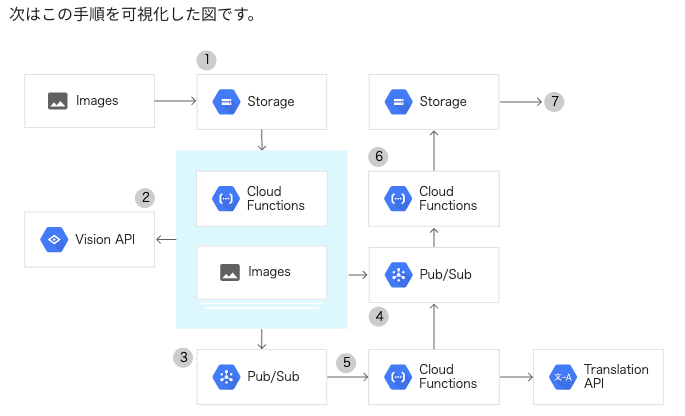
このチュートリアルが元ネタのためか、ググって出てくる OCRのサンプルもいったんCloud Storageに保存してから、トリガーでFunctionsを動かして Vision APIを呼び出すサンプルはそこそこ見つかるのだけれど、シンプルに Cloud Functions を利用して、OCRの結果だけを取得するようなのは見つからない(探し方がわるい?)。
料金(os.tmpdirにファイルを一時的に書き込むよりCloud Storageのほうが安い?)や、整合性維持的なメリットがあるのかしら?
と思ったら、理由書いてあった。
https://cloud.google.com/functions/docs/writing/http?hl=ja
注: Cloud Functions では HTTP リクエストの本文のサイズが 10 MB に制限されるため、この上限を超えるリクエストは、関数の実行前に拒否されます。1 つのリクエストのサイズ上限を超えて永続するファイルは、Cloud Storage に直接アップロードすることをおすすめします。
Base64にエンコードすると、サイズは133%程度になるので、上限が10MBだと、実質は7.5MB程度か、、
今回の要件にはサイズは十分(かつ永続化させる必要もない)なので、以下検証を経てそろえた素材で、単純にファイルをFunctionsに送ってOCRかけて結果をJSONで返す実装を試す。
1.Angular Page
ファイル選択のボタンと、アップロードボタン、結果を表示するテキストエリアを配置。
<textarea cols="60" rows="5" [(ngModel)]="ocrText"></textarea>
<input type="file" (change)="onFileChanged($event)">
<button (click)="onUpload()">Upload!</button>
2.コンポーネント
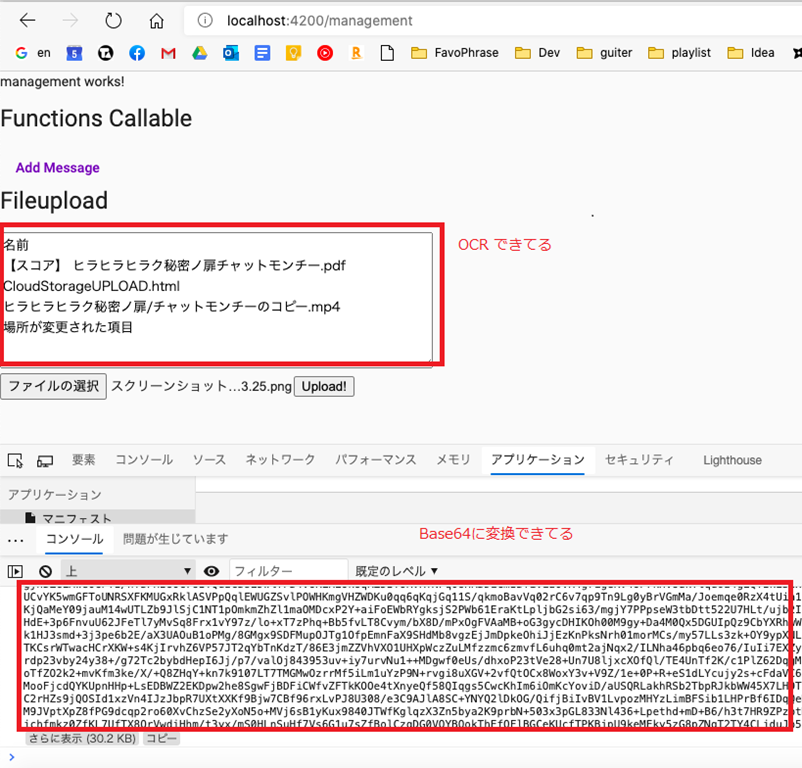
- FileReader#readAsDataURL() で、選択したファイルを、Base64にエンコーディングする。
- ファイルアップロード では、マルチパートで送信していたが、Functions アプリ呼び出しでは、パラメーターをJSONで渡す必要がありそうなので、Base64エンコードした文字列として引き渡す。
- AngularFireFunctions#httpsCallable() で、呼び出し可能Functionsを生成。
import { Component, OnInit } from '@angular/core';
import { AngularFireFunctions } from '@angular/fire/functions';
import { Observable, from } from 'rxjs';

@Component({
  selector: 'app-management',
  templateUrl: './management.component.html',
  styleUrls: ['./management.component.scss']
})
export class ManagementComponent implements OnInit {
  visionsCallable: any;
  selectedFile: File;
  ocrText: string = '';

  constructor(private fns: AngularFireFunctions) {
    this.visionsCallable = fns.httpsCallable('sampleOnCallVisions');
  }

  ngOnInit(): void {
  }

  onFileChanged(event) {
    this.selectedFile = event.target.files[0];
  }

  async onUpload() {
    const reader = new FileReader();
    const promise = new Promise(function(resolve, reject){
      reader.onload = (function(){
          return function(e){
            // data:text/plain;base64,xxxxx
            var fileBase64 = e.target.result.split(',')[1];
            resolve(fileBase64);
          };
      })();
    });

    reader.readAsDataURL(this.selectedFile);
    const fileBase64 = await promise.then();
    console.log(fileBase64);

    const observer = this.visionsCallable(
      {
        filename: this.selectedFile.name,
        base64encodedFile: fileBase64
      }) as Observable<any>;

    try {
      const res = await observer.toPromise();
      this.ocrText = res.result;
    } catch(e) {
      console.log(e);
    }
  }
}
3.Functions
-
- この辺で試したことを組み合わせて実装
- この辺で試したことを組み合わせて実装
index.ts
export const sampleOnCallVisions = functions.https.onCall( async (data, context) => {
    const filename: string = data?.filename as string;
    const base64encodedFile: string = data?.base64encodedFile as string;

    if (filename == null || typeof filename !== 'string' ||
        base64encodedFile == null || typeof base64encodedFile !== 'string') {
        throw new functions.https.HttpsError(
            'invalid-argument','filename and  base64encodedFile are required.');
    }
    if (!context.auth) {
        throw new functions.https.HttpsError(
            'failed-precondition', 'not authenticated.');
    }

    const tmpdir = os.tmpdir();
    const filepath = path.join(tmpdir, filename);

    console.log(`Filepath ${filepath}`);

    const visionClient = new vision.ImageAnnotatorClient();
    fs.writeFileSync(filepath, base64encodedFile, {encoding: 'base64'});

    const [textDetections] = await visionClient.textDetection(filepath);
    console.log(textDetections);
    const [annotation]:any = textDetections.textAnnotations;
    console.log(annotation);

    const text = annotation ? annotation.description : '';
    console.log("## OCR ## " + text);

    return {result: text};
});
4.実行
4.1 サンプルイメージ
いざ実行。以下のサンプルイメージをOCRにかける。

4.2 実行結果
選択したファイルが、OCRかかって、結果が表示されたOKOK!!