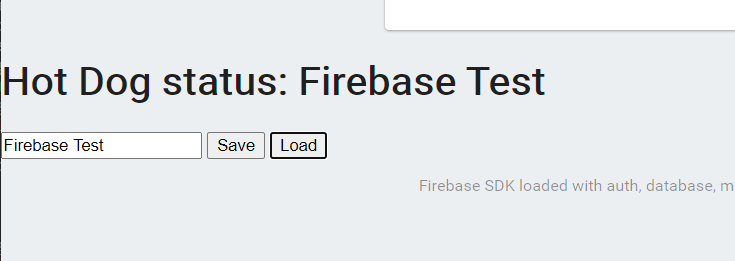
Firebase Hosting と Firestore を試す


Cloud Functionsを試しながら、Firebase Toolsの使い方などわかってきたので、引き続き Hosting と Databaseを試す。
1.Firebase Hosting
https://firebase.google.com/docs/hosting/
Firebase Hosting は、ウェブアプリ、静的コンテンツと動的コンテンツ、マイクロサービス向けの高速で安全性の高いホスティングを提供します。
Firebase Functionsを試すしたときに導入した、Firebase CLIを使用してFirebase Hostingも同様に導入する。
1.1 ローカルで実行
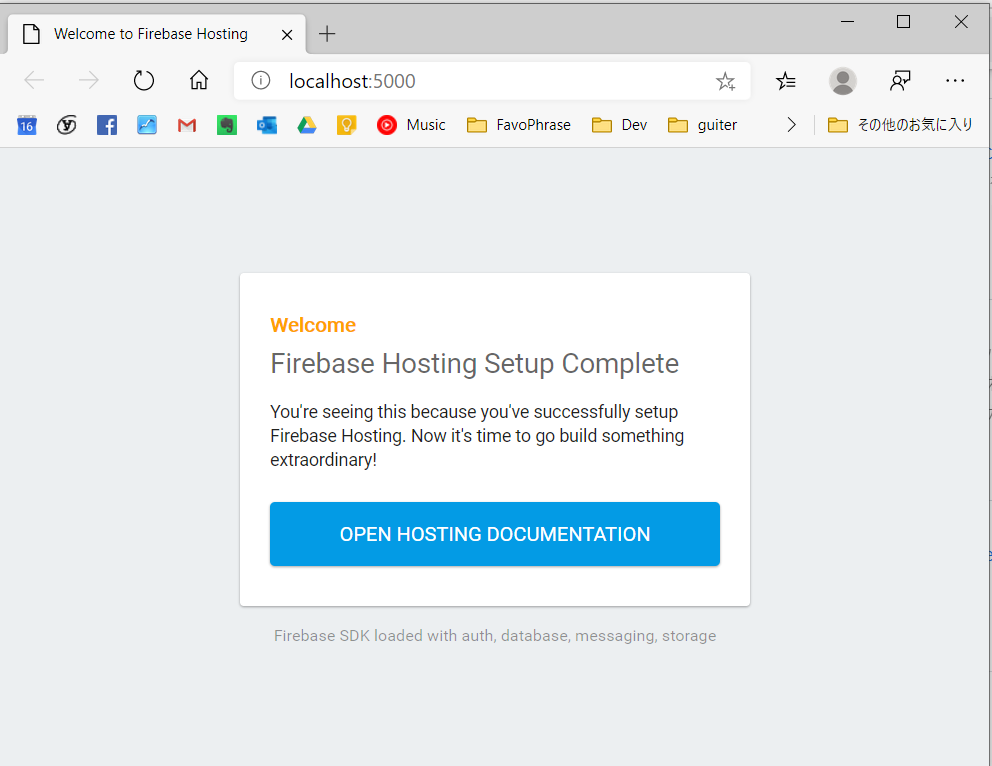
以下のコマンドでfirebase init で生成された、Hostingのサンプルアプリを実行する。
> firebase serve --only hosting
立ち上がった。OK
2.Firestore
Cloud Firestore は、Firebase と Google Cloud Platform からのモバイル、ウェブ、サーバー開発に対応した、柔軟でスケーラブルなデータベースです。Firebase Realtime Database と同様に、リアルタイム リスナーを介してクライアント アプリ間でデータを同期し、モバイルとウェブのオフライン サポートを提供します。これにより、ネットワークの遅延やインターネット接続に関係なく機能するレスポンシブ アプリを構築できます。Cloud Firestore は、その他の Firebase および Google Cloud Platform プロダクト(Cloud Functions など)とのシームレスな統合も実現します。
2.1 Firestoreを利用するアプリ
https://firebase.google.com/docs/firestore/quickstart?hl=ja
上記の動画を見ながら、Firestoreを使用するように、上記Hostingのサンプルindex.htmlを編集する。
下記、TODOの部分。
firebase init で生成されたファイルに合わせて、上記動画のコードを若干修正。TODOコメントの個所を変更。
- firestore のライブラリを参照
- HTMLフォームを追加。firestoreに保存する内容のテキストボックスと保存、読み込みボタン
- 保存ボタン押下でfirestoreに書き込み
- 読み込みボタンでfirestoreから読み込み画面に反映
<!DOCTYPE html>
<html>
  <head>
    <meta charset="utf-8">
    <meta name="viewport" content="width=device-width, initial-scale=1">
    <title>Welcome to Firebase Hosting</title>

    <!-- update the version number as needed -->
    <script defer src="/__/firebase/7.12.0/firebase-app.js"></script>
    <!-- include only the Firebase features as you need -->
    // TODO この行を追加
    <script defer src="/__/firebase/7.12.0/firebase-firestore.js"></script>
    // TODO この行を追加
    <script defer src="/__/firebase/7.12.0/firebase-auth.js"></script>
    <script defer src="/__/firebase/7.12.0/firebase-database.js"></script>
    <script defer src="/__/firebase/7.12.0/firebase-messaging.js"></script>
    <script defer src="/__/firebase/7.12.0/firebase-storage.js"></script>
    <!-- initialize the SDK after all desired features are loaded -->
    <script defer src="/__/firebase/init.js"></script>

    <style media="screen">
      body { background: #ECEFF1; color: rgba(0,0,0,0.87); font-family: Roboto, Helvetica, Arial, sans-serif; margin: 0; padding: 0; }
      #message { background: white; max-width: 360px; margin: 100px auto 16px; padding: 32px 24px; border-radius: 3px; }
      #message h2 { color: #ffa100; font-weight: bold; font-size: 16px; margin: 0 0 8px; }
      #message h1 { font-size: 22px; font-weight: 300; color: rgba(0,0,0,0.6); margin: 0 0 16px;}
      #message p { line-height: 140%; margin: 16px 0 24px; font-size: 14px; }
      #message a { display: block; text-align: center; background: #039be5; text-transform: uppercase; text-decoration: none; color: white; padding: 16px; border-radius: 4px; }
      #message, #message a { box-shadow: 0 1px 3px rgba(0,0,0,0.12), 0 1px 2px rgba(0,0,0,0.24); }
      #load { color: rgba(0,0,0,0.4); text-align: center; font-size: 13px; }
      @media (max-width: 600px) {
        body, #message { margin-top: 0; background: white; box-shadow: none; }
        body { border-top: 16px solid #ffa100; }
      }
    </style>
  </head>
  <body>
    <div id="message">
      <h2>Welcome</h2>
      <h1>Firebase Hosting Setup Complete</h1>
      <p>You're seeing this because you've successfully setup Firebase Hosting. Now it's time to go build something extraordinary!</p>
      <a target="_blank" href="https://firebase.google.com/docs/hosting/">Open Hosting Documentation</a>
    </div>

    <!--TODO ここから追加 -->
    <h1 id="hotDogStatus">hot dog status</h1>
    <input type="textField" id="latestHotDogStatus" />
    <button id="saveButton">Save</button>
    <button id="loadButton">Load</button>
    <!--TODO ここまで追加 -->

    <p id="load">Firebase SDK Loading…</p>

    <script>
      document.addEventListener('DOMContentLoaded', function() {
        // //
        // // The Firebase SDK is initialized and available here!
        //
        // firebase.auth().onAuthStateChanged(user => { });
        // firebase.database().ref('/path/to/ref').on('value', snapshot => { });
        // firebase.messaging().requestPermission().then(() => { });
        // firebase.storage().ref('/path/to/ref').getDownloadURL().then(() => { });
        //
        // //

        try {
          let app = firebase.app();
          let features = ['auth', 'database', 'messaging', 'storage'].filter(feature => typeof app[feature] === 'function');
          document.getElementById('load').innerHTML = `Firebase SDK loaded with ${features.join(', ')}`;

          // TODO ここから追加
          var firestore = firebase.firestore();
          const docRef = firestore.doc("sample/sandwichData");
          const outputHeader = document.querySelector("#hotDogStatus");
          const inputTextField = document.querySelector("#latestHotDogStatus");
          const saveButton = document.querySelector("#saveButton");
          const loadButton = document.querySelector("#loadButton");

          saveButton.addEventListener(
            "click",
            function(){
              const textToSave = inputTextField.value;
              console.log("Save " + textToSave + " to Firebase");
              docRef.set({
                hotDogStatus: textToSave
              });
            }
          );

          loadButton.addEventListener(
            "click",
            function(){
              docRef.get().then(function(doc){
                if(doc && doc.exists) {
                  const myData = doc.data();
                  outputHeader.innerText = "Hot Dog status: " + myData.hotDogStatus;
                }
              }).catch(function(error) {
                console.log("error");
              });
            }
          );
          // TODO ここまで追加
        } catch (e) {
          console.error(e);
          document.getElementById('load').innerHTML = 'Error loading the Firebase SDK, check the console.';
        }
      });
    </script>
  </body>
</html>
2.2 Firestoreルールの設定
https://firebase.google.com/docs/firestore/security/get-started?hl=ja
上記でFirestoreを使用するアプリを記述したが、Firebaseのコンソール Database-Cloud Firestore - ルール からアクセスルールを記述する。
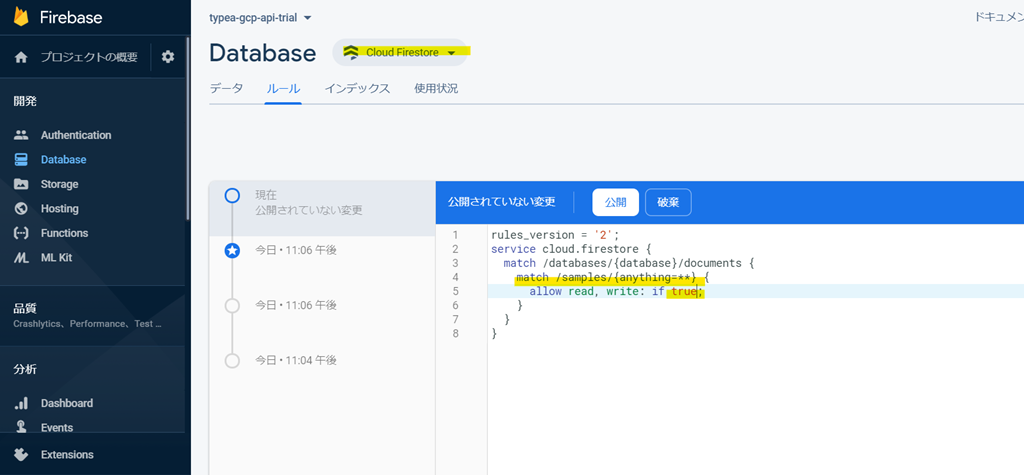
service cloud.firestore {
  match /databases/{database}/documents {
    match /{document=**} {
      allow read, write;
    }
  }
}
3.デプロイ
ここまでをデプロイして動作確認
> firebase deploy
3.1確認
もともとのサンプルの下に、テキストボックスとボタン2つが表示されている。
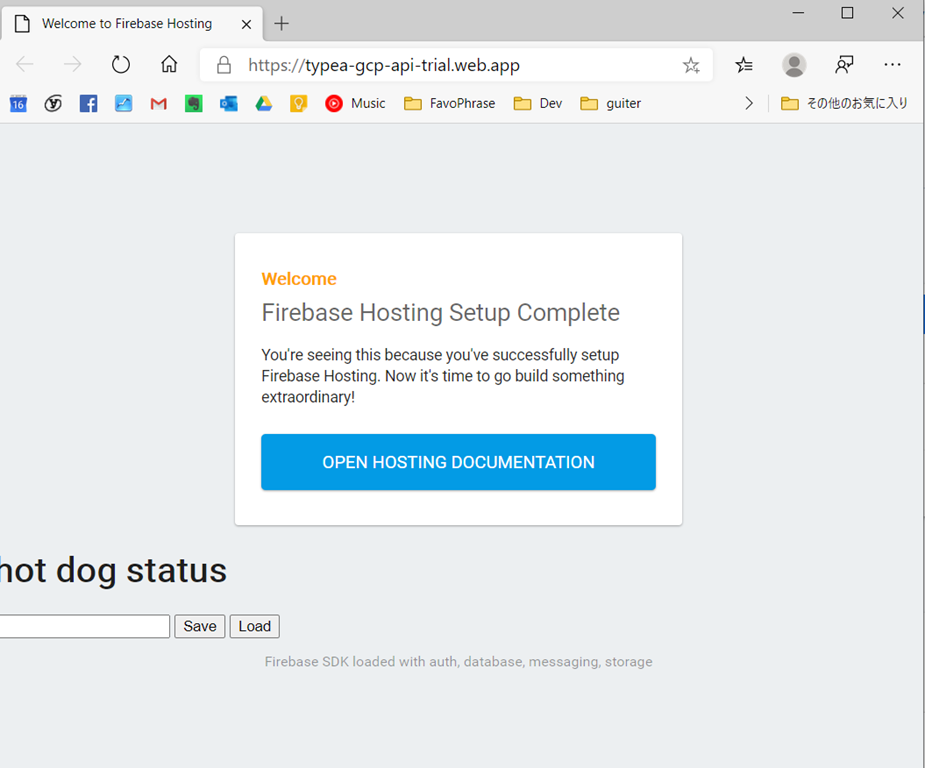
適当な値をテキストボックスに入力して、Saveボタンを押下
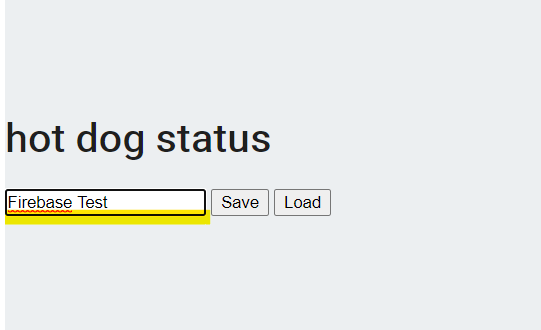
Firebase コンソール Database ー Cloud Firestore で内容を確認すると、先ほど登録した内容が保存されている。
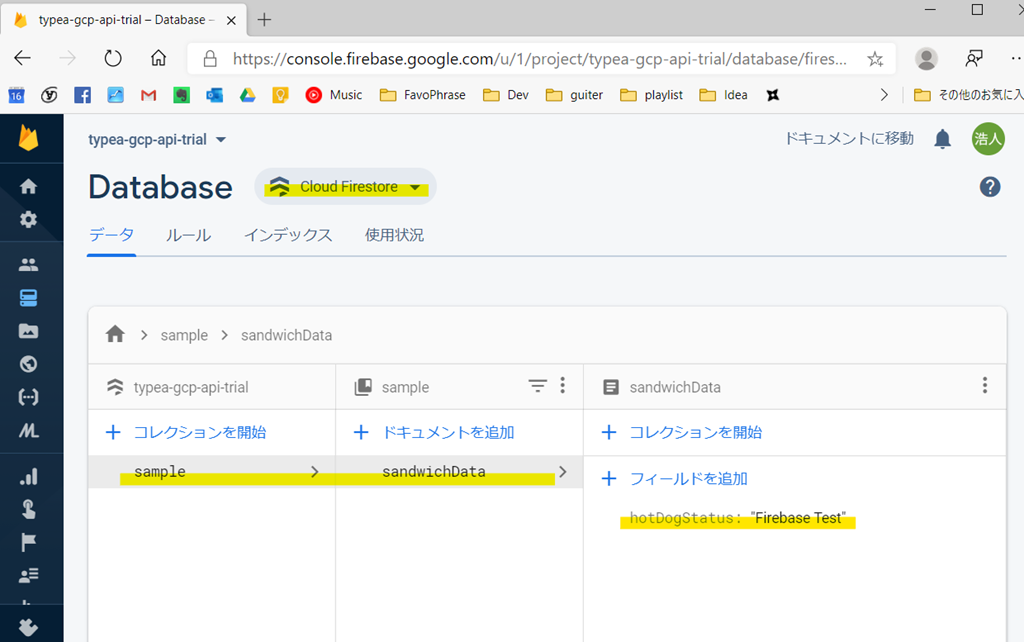
Loadボタンで、データの読み込みを行うと、データが正しく読み込まれ、内容がラベルに表示された!OK